Tutorials › 3
Simulate G-code from another program
NativeCAM's simulator isn't only for its own toolpaths. Open a file from any CAM program and watch it cut on your material, with your bits, before the machine does.
-
Set up the material
The simulation uses the current project's material and tool library. Choose File ▸ New for an empty project, select Material & Machine, and set the material size, thickness and zero to match how the file was programmed (for example, X/Y zero at the lower left and Z zero on top).
Check that the Tool Library (⇧⌘T) has bits with the tool numbers the file calls, and the right shapes and diameters. NativeCAM carves each tool change with the bit of that number.
-
Open the file
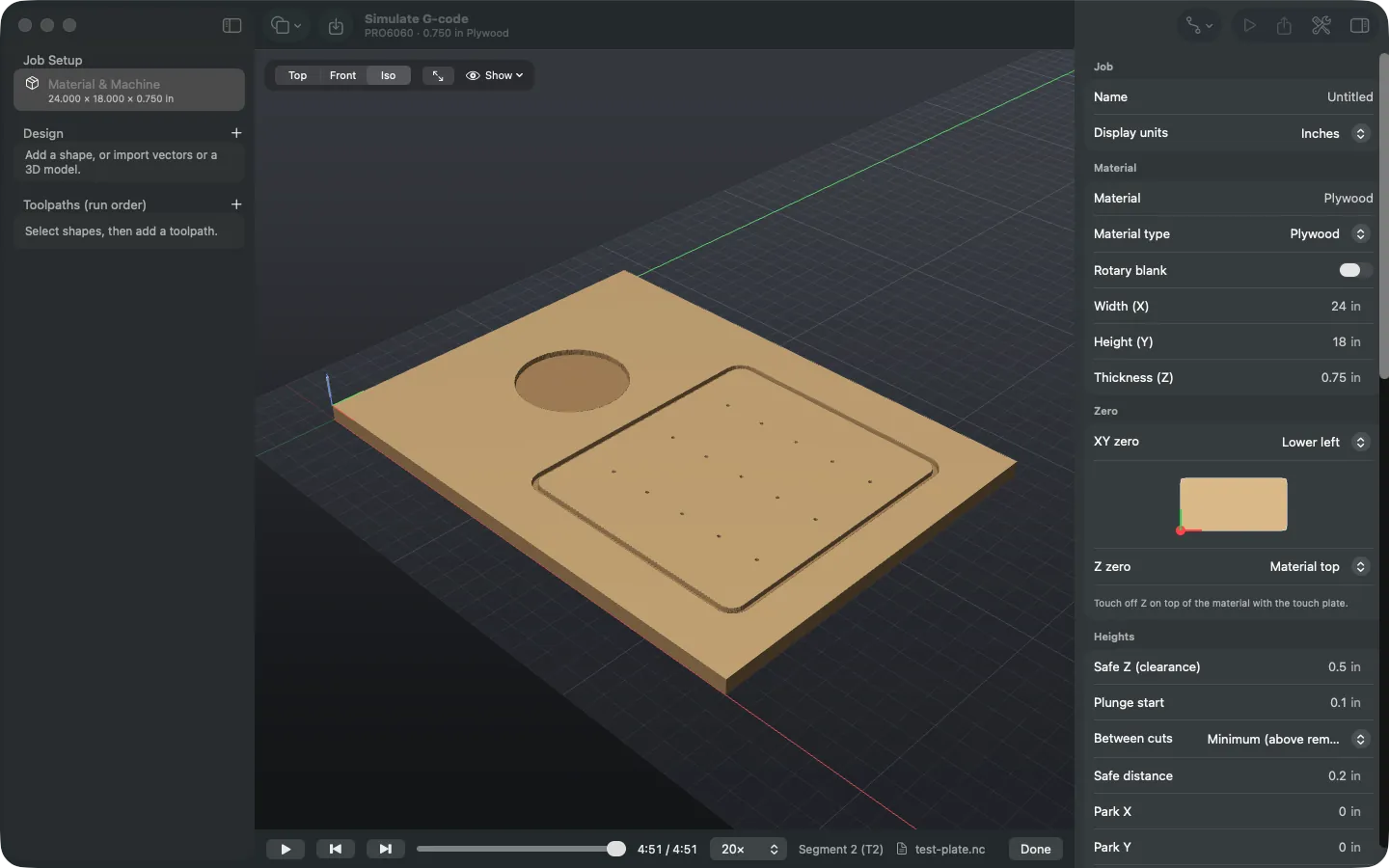
Choose File ▸ Simulate G-code File…, or drop the file on the canvas. The simulation starts right away; the file's name appears in the controls under the canvas.
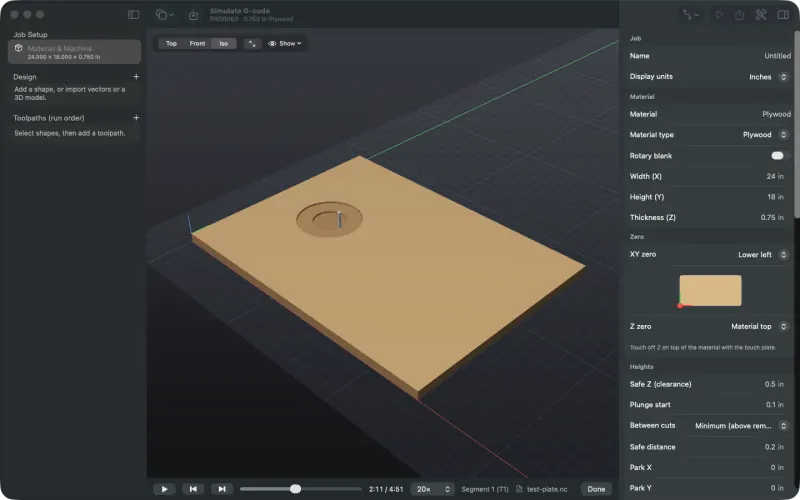
Part way through a hand-written test file: the first tool is clearing a circular pocket. Drilling cycles (
G73,G81–G83,G85,G86,G89) are expanded into the moves the controller makes, so peck drilling shows up as it will cut. Anything NativeCAM can't follow is listed in a G-code notes message. -
Watch, scrub and inspect
Play, pause, step between tools and scrub the timeline as you would for a NativeCAM job. Drag to orbit and press ⌘1 for a top view. Look for cuts that go too deep, holes in the wrong place, rapids through material and anything that cuts outside the sheet.
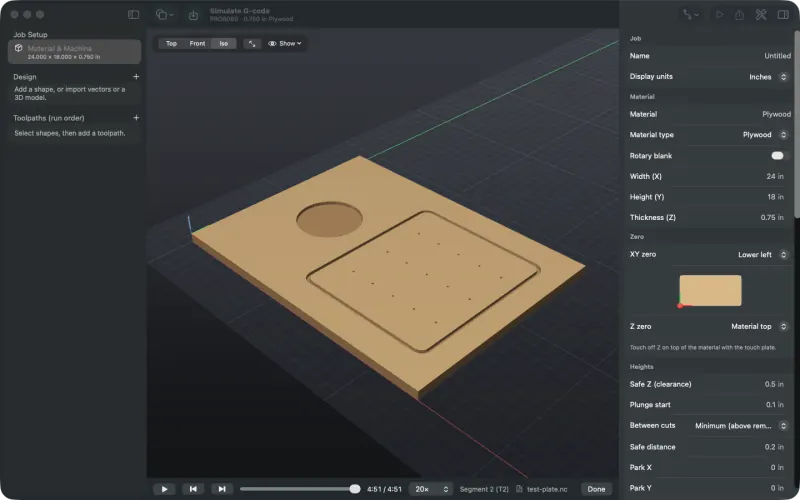
The finished file: pocket, groove, and fifteen holes from one G83 peck-drilling cycle. -
Or from the command line
The CLI simulates a file and prints what it removed and how long the job takes, and can render the result as an image:
swift run -c release nativecam-cli sim other-cam-job.tap --png result.pngTo compare two versions of a job cell by cell, write each heightmap with
--heightsand compare them withscripts/measure/compare_parts.py(see Develop).
Limits. Tapping and boring cycles (G74, G76, G84, G87, G88) aren't simulated. Imported G-code with A-axis words is simulated as if the part never turned, with a warning. A simulation shows what the file asks for; it doesn't prove your controller reads it the same way, so still air-cut it.